
Unity Editor tool
Hyper-C 5.0
Ask your project where things happen.
Ask a question in plain English, or paste a Unity error or an AI assistant's answer. Hyper-C ranks the scripts and exact lines that answer it, shows every point of its evidence, and opens the line in your code editor.
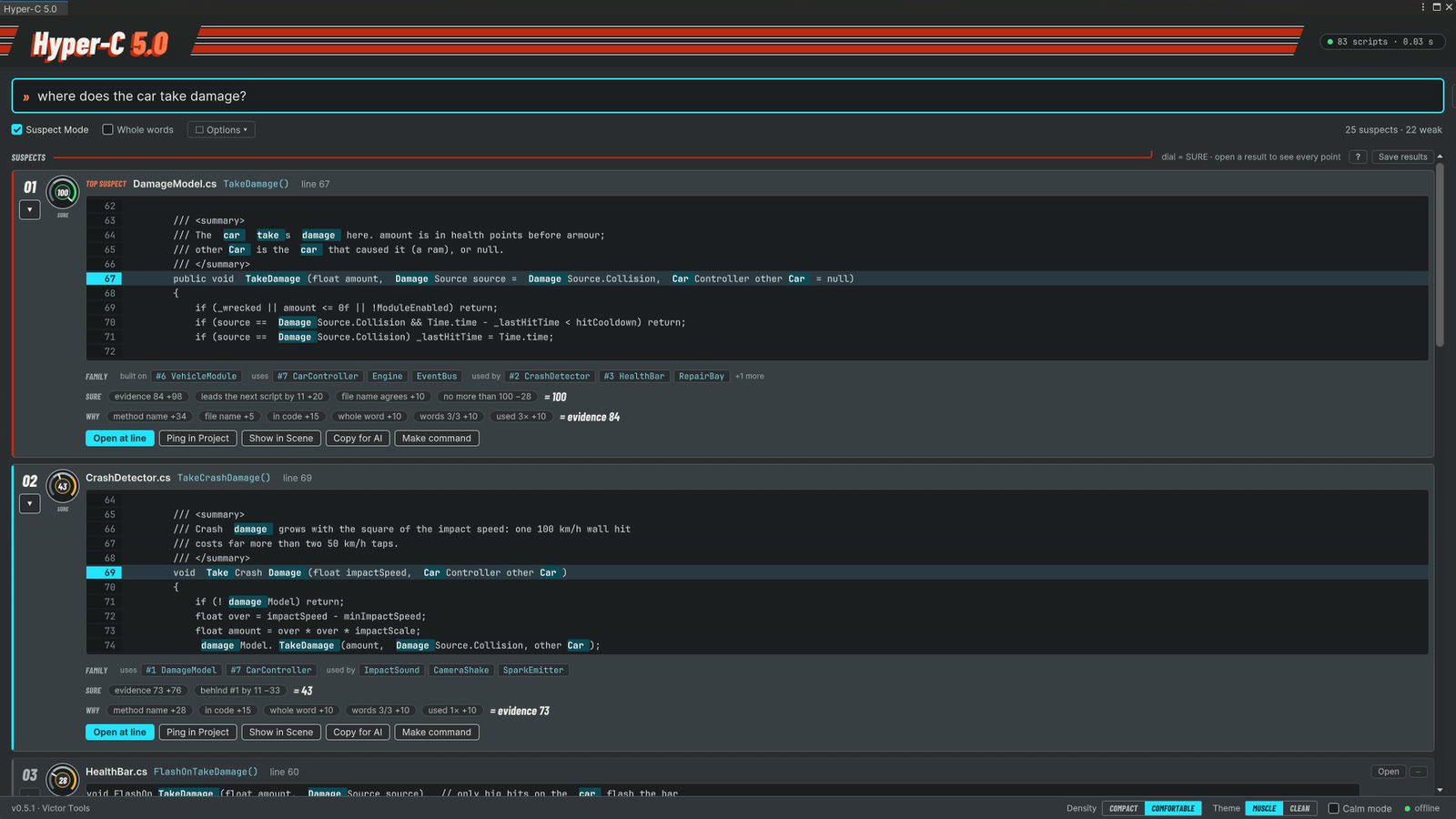
where does the car take damage?
SURE 100 DamageModel.cs TakeDamage() line 67
- Opens at the exact line
- Works offline
- Never changes your files
Watch the trailer
Watch on YouTubeThe player loads from YouTube only when you press play. Video privacy
Screenshots
Select a screenshot to see it full size. They show Hyper-C searching a small demo car project.
-
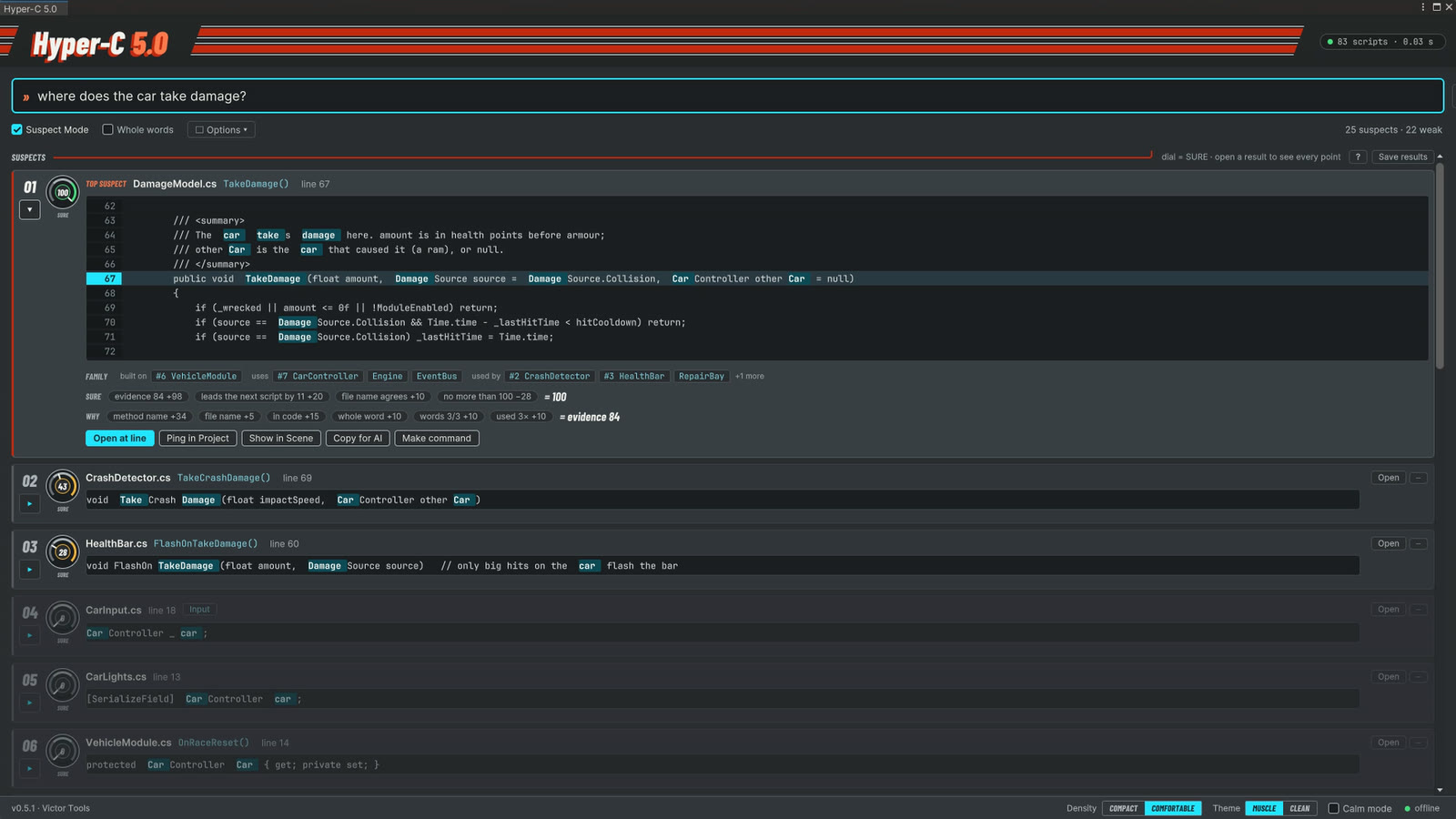
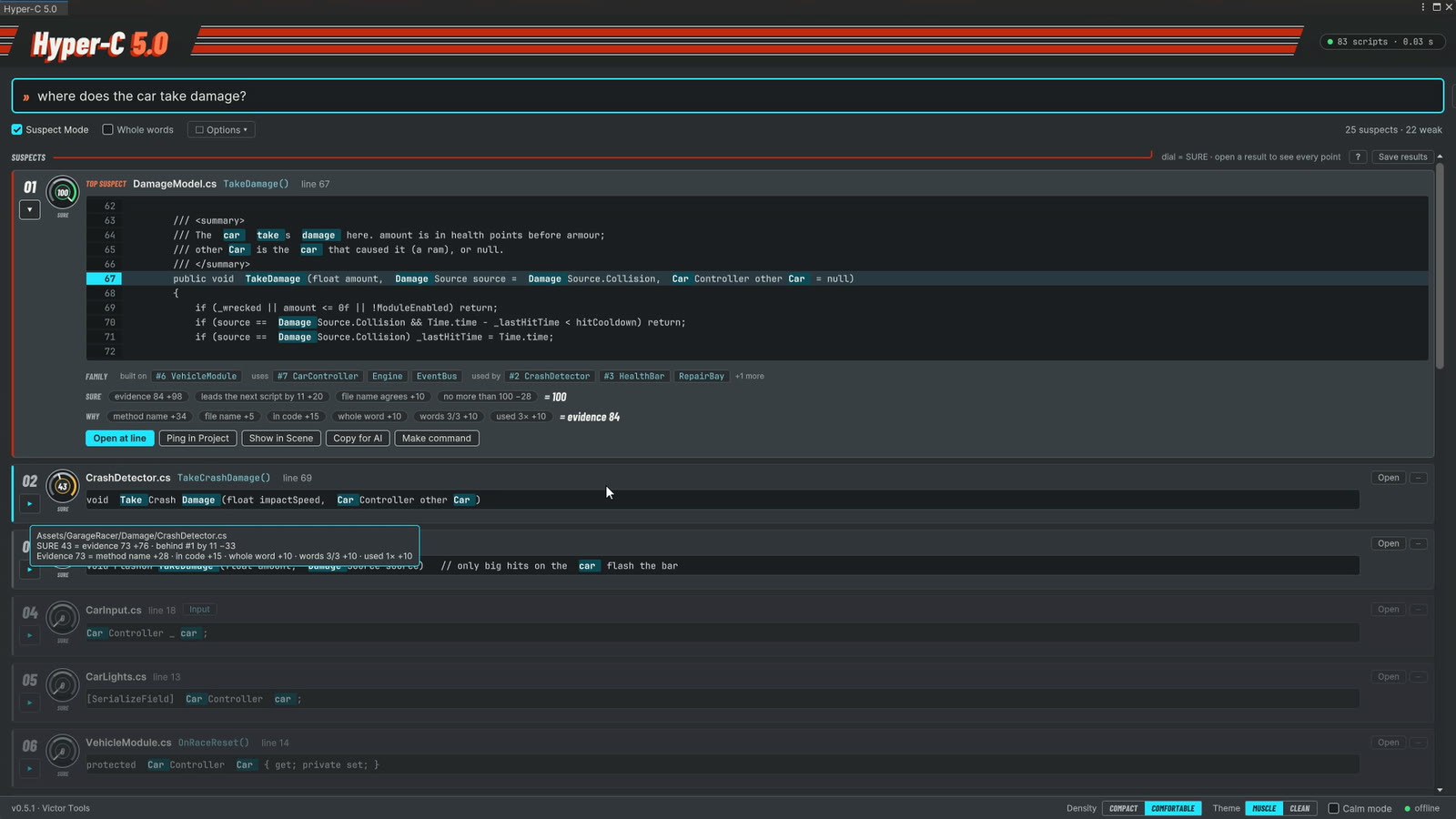
Ranked answers, best first. The top result opens with the code around its line and every point behind its score. -
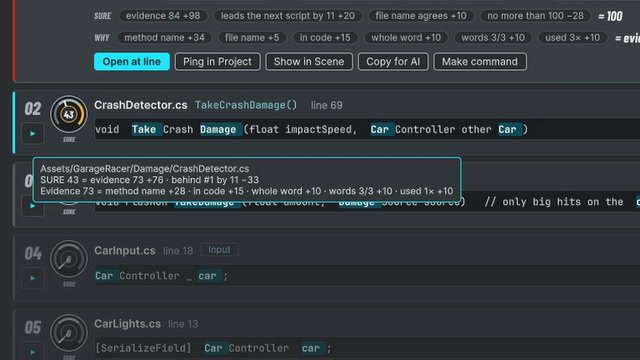
Hover for the math. Path and points, right under the row. -
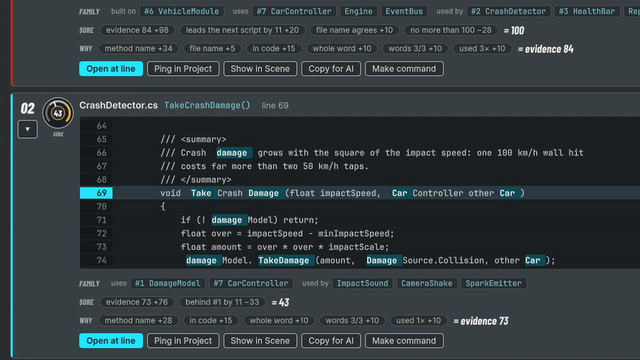
Follow the family line. Open several results and see how the scripts connect. -
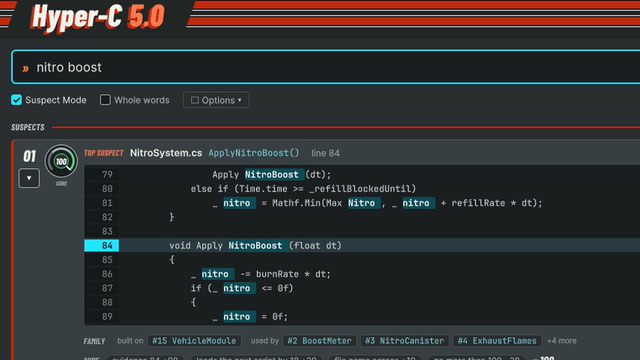
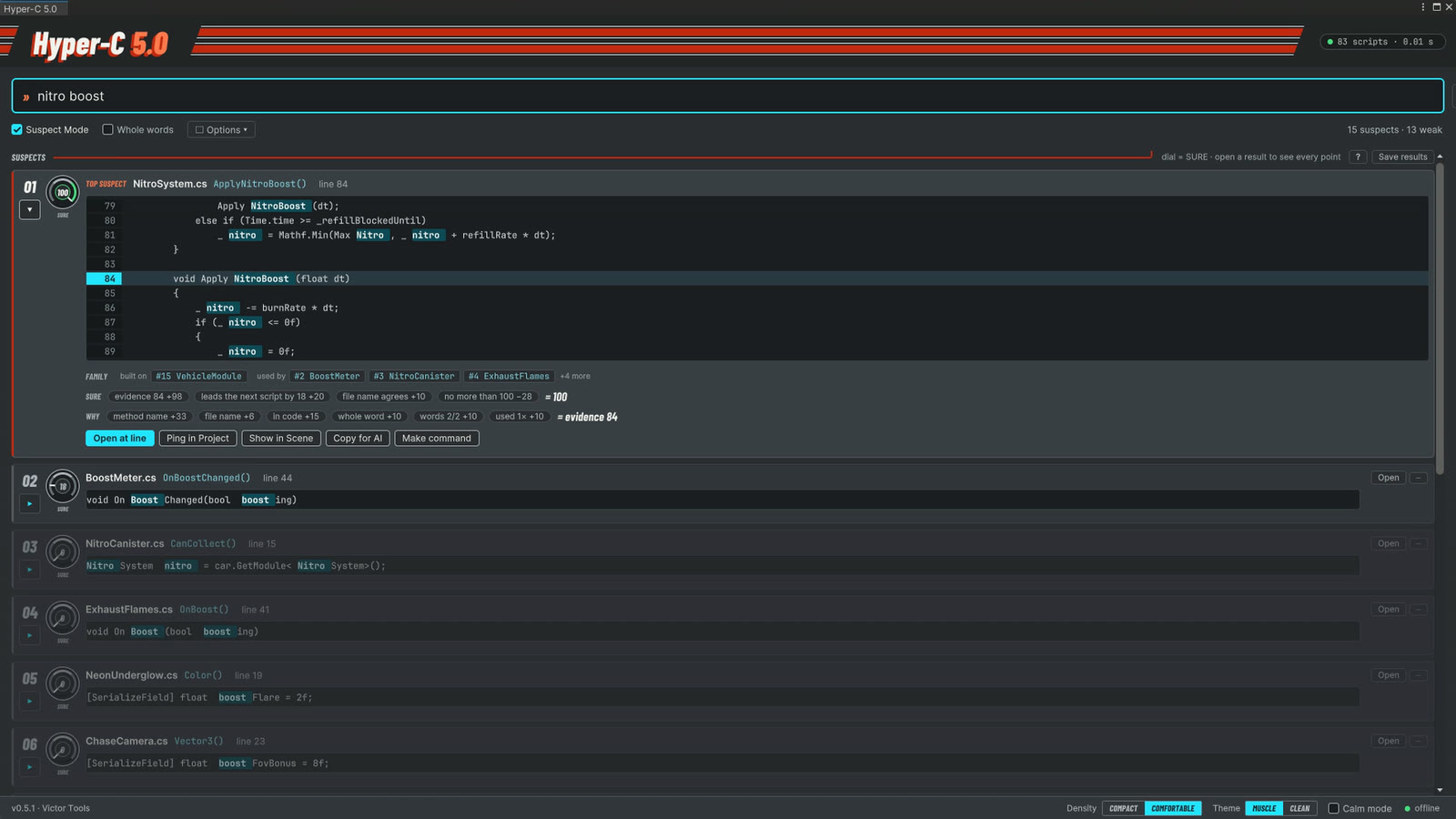
Keywords work too. So do code names. -
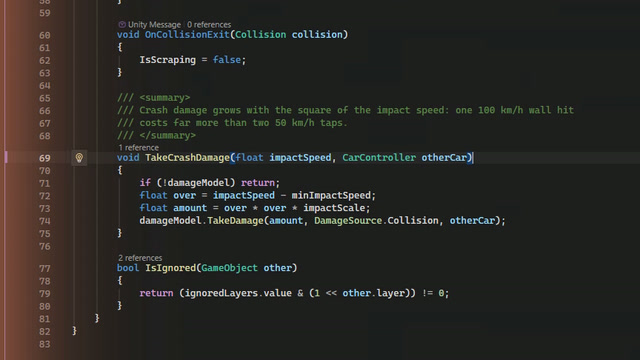
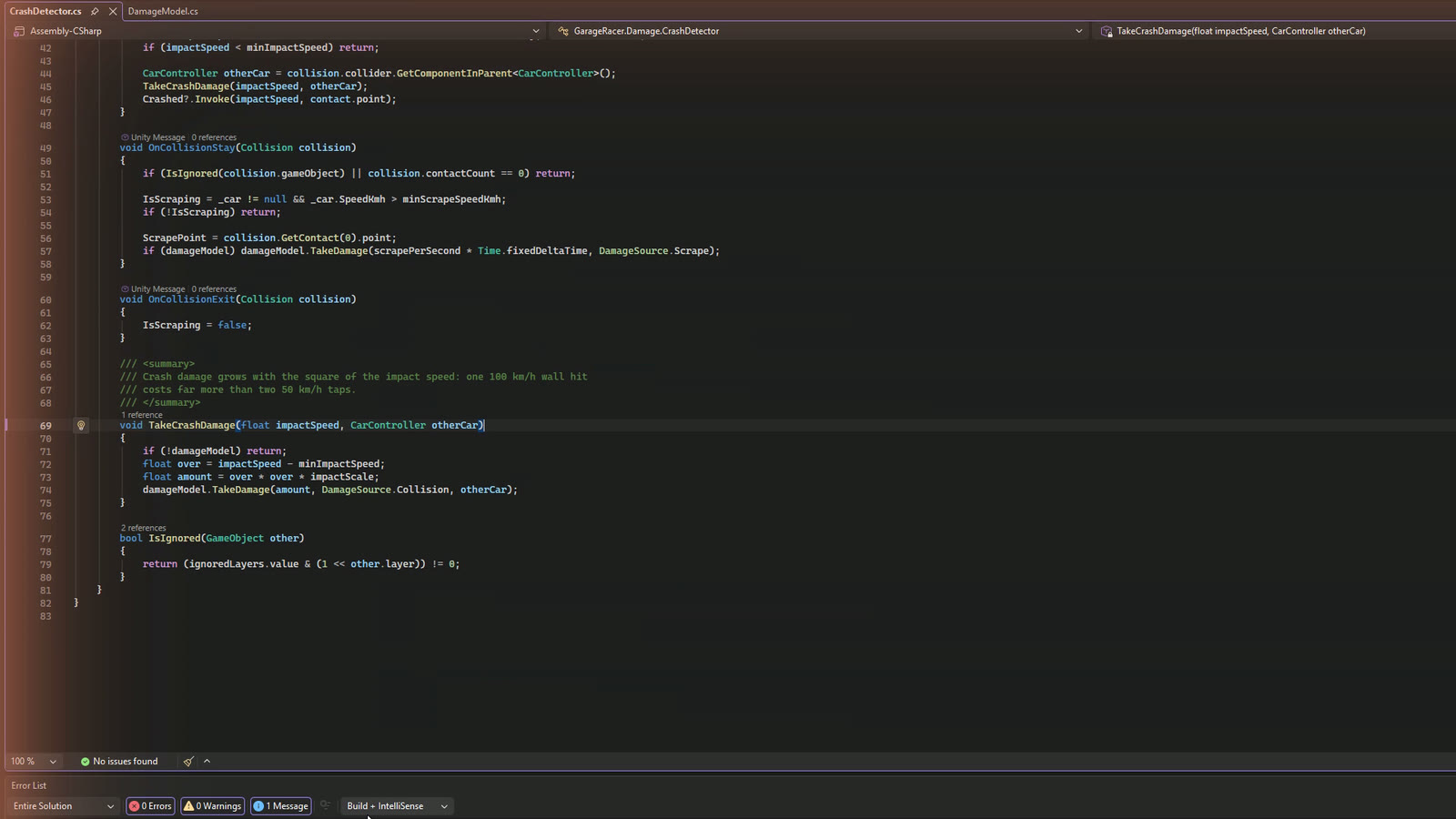
Straight to the line. Open jumps to it in your code editor. -
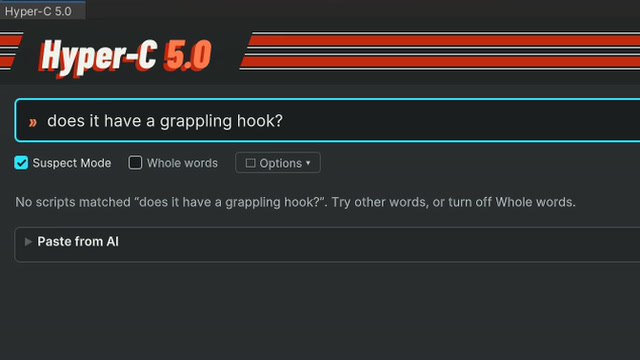
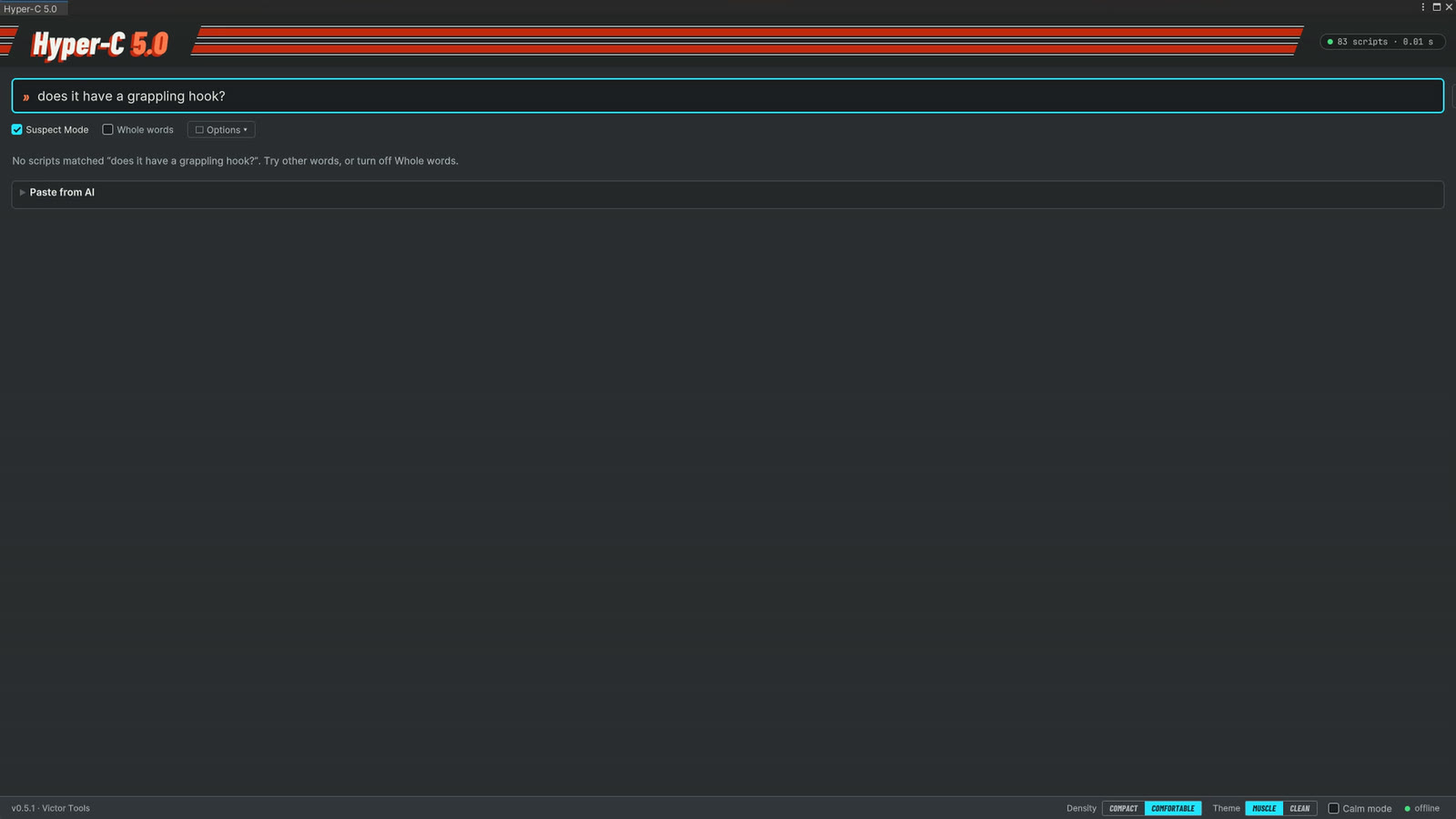
No match? It says so. It doesn't invent an answer, and a weak guess is labelled BEST GUESS. -
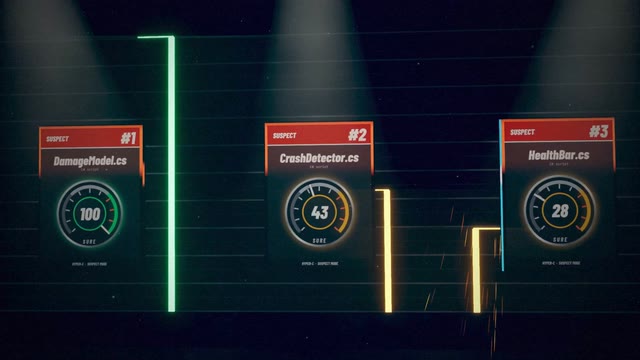
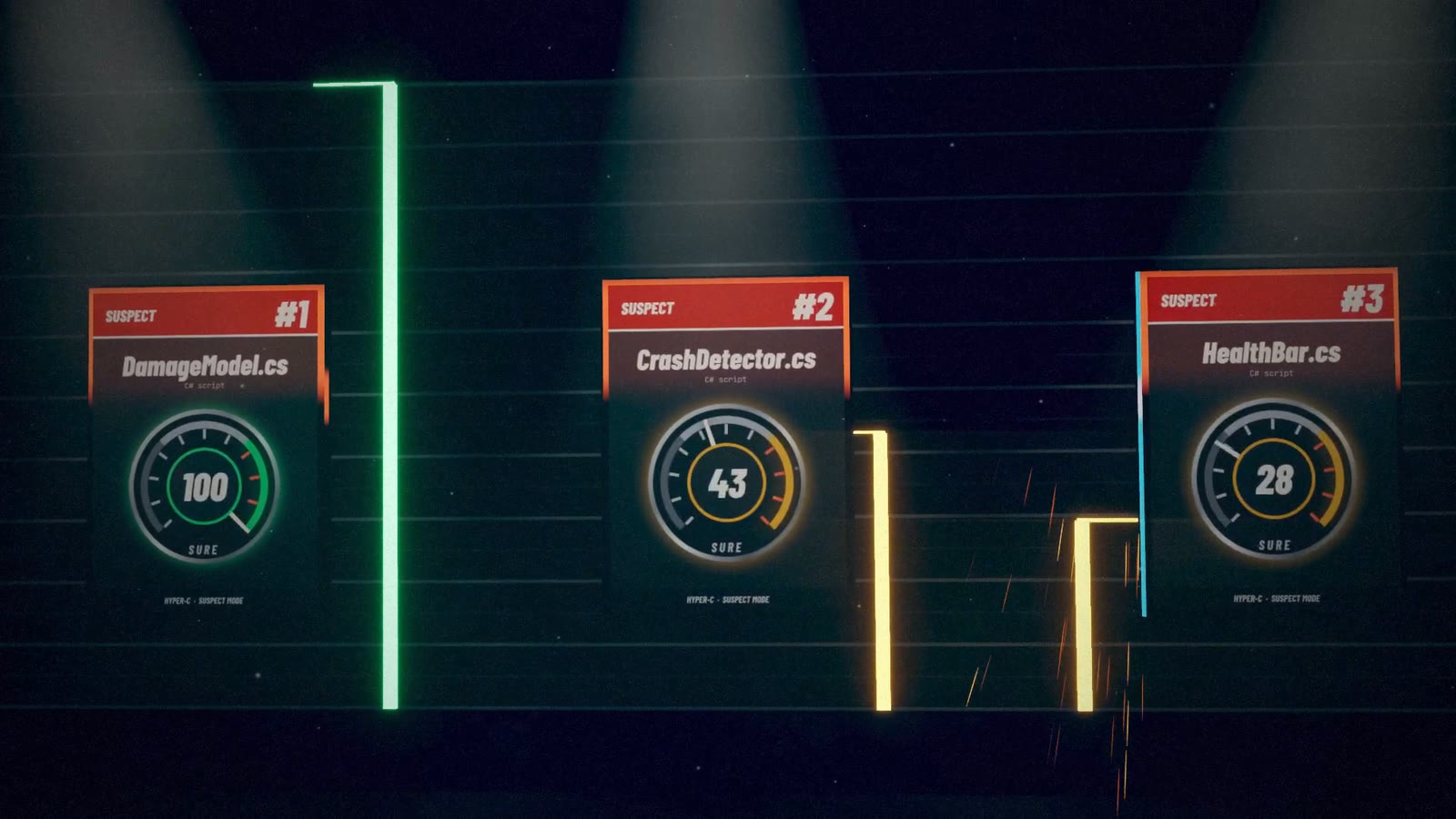
The SURE dial. How much to trust each result, from 0 to 100. (Artwork from the trailer.)
What it does
Hyper-C is a search window for the Unity Editor that answers questions about your own project's C# code. Ask "where does the player take damage?" and it lists the scripts most likely to hold the answer, best first, each one ready to open at the exact line.
It's built to be checked, not trusted blindly. Every result has a SURE dial from 0 to 100, every point behind it is shown, and the words it matched are highlighted in the code. On the questions Hyper-C was tuned and tested on, results reading 60 or more were the right script about three times in four, and results reading 0 were almost never right. Your project may differ, so treat SURE as a guide and read the evidence.
- 60+ SUREthe right script about 3 times in 4, on the questions it was tested on
- about 0.05 sfor a typical search on a 430-script project, inside Unity
How it works
-
Ask
Open Hyper-C with Alt+Shift+H and type a question, a few keywords or a code name. You can also paste a Unity error or stack trace.
-
Check the evidence
Results are ranked best first. The SURE dial says how much to trust each one, and every result shows its points when you hover over it or open it: method name, file name, whole word, how often it's used, and more.
-
Jump to the line
Click Open and your code editor opens the script at that exact line. Not quite it? The family line shows the scripts it builds on, uses, or is used by, one click away.
Features
Plain-English questions
Filler words are skipped, simple endings are understood (damage, damaged), code names are split into words (fallDamageEnabled), and rare words count more than common ones.
Every point explained
The SURE dial and the evidence score behind it are broken down point by point, so you can see why each result ranks where it does.
From error to line
Paste a Unity error or stack trace. Hyper-C lists every place it names, in order, and opens the first one in your code editor.
Works with your AI assistant
Paste what an AI chat gave you: keywords, Script.Method, a file name, or a short command block of FILE=, METHOD= and TARGET= lines (the manual shows the format). Copy for AI hands a result back the other way.
Follow the family line
Open a result to see the scripts it builds on, the ones it uses and the ones that use it. Click a name to open it at the line that matters.
Speaks game dev
A built-in game-dev word list lets your words find the developer's words: petrol finds fuel, health finds hitPoints. The points always say when it was used.
Finds matching assets too
Prefabs, materials, shaders, sounds, models and other assets whose file names match your question are listed under the scripts. Only file names are read, never asset contents.
Fast searches
The first search reads every script once, with a progress bar and Cancel on big projects. Hyper-C then remembers what it read and re-reads only changed scripts, until Unity recompiles or restarts. A typical search on a 430-script project takes about 0.05 s inside Unity.
Fits your workflow
Keyboard control, search one top-level folder of Assets at a time, ignore folders you never need, and save results as a Markdown report with paths inside the project only.
Honest limits
Hyper-C is a strong clue finder, not an oracle. Here's what it can't do.
- Not a compiler, and not an AI. It reads your scripts as text and scores the evidence it finds. It doesn't compile, run or "understand" your code, so its results are strong clues, not proof.
- Some connections between scripts are invisible to it: links made in the Inspector (UnityEvents), by strings (
SendMessage,Invoke), by reflection, by animation events or by scene setup. - English questions only.
- Spelling matters. A word your code never uses, and that the word list doesn't cover, can't be found. Try the word a programmer would use.
- Only
.csfiles are searched for code. Shader code, scene contents and prefab settings aren't searched; asset file names are listed separately. - Packages are searched only when you turn on Include Packages, and only those stored inside your project's
Packagesfolder. - SURE is a guide, fitted on real questions, not a guarantee. Read the evidence.
Requirements
- Unity 2022.3, 6.0, 6.3 or 6.4 (the versions it's tested on)
- Runs in the Unity Editor only. Its code lives in Editor-only assemblies, so nothing is added to your game builds.
- A project with C# scripts
- No internet connection or account needed to use it
- To open a result at its line: a code editor set in Unity's Preferences > External Tools
What's in the package
- The Hyper-C 5.0 window, installed to
Assets/Hyper-C 5.0and opened from Tools > Victor Tools > Hyper-C 5.0 > Open Hyper-C or Alt+Shift+H (Option+Shift+H on keyboards with an Option key) - A user manual (PDF) in its
Documentationfolder - A changelog
- Third-party notices for the bundled fonts
Common questions
Does my code leave my computer?
No. Hyper-C has no network code and never connects to the internet. It reads your .cs files and the names of your asset files, and it never changes them.
It writes only two things: its settings file, UserSettings/ in your project, and a report when you click Save results, to the place you choose. It puts text on the clipboard only when you click Copy for AI. That text includes the script's full path on your computer, so remove it before you paste it anywhere you'd rather not share it.
Is Hyper-C an AI?
No. It reads your scripts as text and scores the evidence it finds: your words in names, in file names and in code. It's made to work alongside an AI assistant, though: paste the assistant's answer into Paste from AI, or use Copy for AI to hand a result to your chat.
Does it add anything to my game builds?
No. Hyper-C's code lives in Editor-only assemblies, so nothing from it goes into your builds.
Which Unity versions does it support?
It's tested on Unity 2022.3, 6.0, 6.3 and 6.4.
Which code editor does it open?
The one Unity is set to use in Preferences > External Tools. Open takes you to the exact line.
Will it cope with a big project?
The first search reads every script once, with a progress bar and Cancel when that takes more than half a second. Later searches re-read only the scripts that changed, until Unity recompiles or restarts; then the next search reads them all again. To speed things up, search one top-level folder of Assets at a time, or ignore folders you never need.
When can I buy it, and how much will it cost?
Hyper-C 5.0 is coming soon to the Unity Asset Store. The price will be announced at launch.
Questions before you buy?
Email support@intensifiedstudios.com. A real person reads and answers it. If you need help later, include your Hyper-C version, your Unity version and the question you asked.